# Quartz for ASP.NET

Quartz composes ASP.NET pages through a Builder, reusable HTML templates, and view objects. The walkthrough covers their relationships and Visual Studio templates.

Published: 2010-11-10
Updated: 2010-11-10
Source: https://matlus.com/writing/quartz-for-aspnet/
Tags: quartz-aspnet, html-templates, composition-over-inheritance, polymorphism, csharp

---
<p data-source-license>Licensing: <a href="https://web.archive.org/web/20240809182901/http://matlus.com/opensource/mit-license/">MIT License</a></p>


The genesis of **Quartz for ASP.NET** was what I felt were some [Problems with ASP.NET MVC Framework Design](/writing/problems-with-asp-net-mvc-framework-design/). Quartz for ASP.NET can be used in conjunction with ASP.NET MVC or in regular ASP.NET WebApplication/Website projects (without any WebForms). It works the same either way.

### Videos and Downloads

There are a few Videos in the [Videos section](#videos) below, that you may want to watch.

In the [Downloads](#downloads) you can find the following:

1. The Complete source code (.Net 4.0 compatible only at the moment)
2. A Sample Project
3. A New Quartz Project Item - for VS 2010
4. A New Quarts Builder Item - for VS 2010
5. A New Quartz View Item - for VS 2010

Quartz for ASP.NET is the most intuitive way to build dynamic web pages, using a powerful combination of class Composition and Inheritance. Today’s dynamic pages are rarely simple, so you need something that gives you more control over how your pages are composed. With Quartz for ASP.NET you continue to get the **loose coupling** and **separation of concerns** that the MVC design pattern provides and in addition you also get

- Loose coupling between Views and Template
- Templates are Html. That is there is no html+code OR code+html
- Views can be treated as real classes - inheritance/polymorphism and you write code in a.cs file
- Strong typing and F12 navigation
- Plug-able Websites/applications

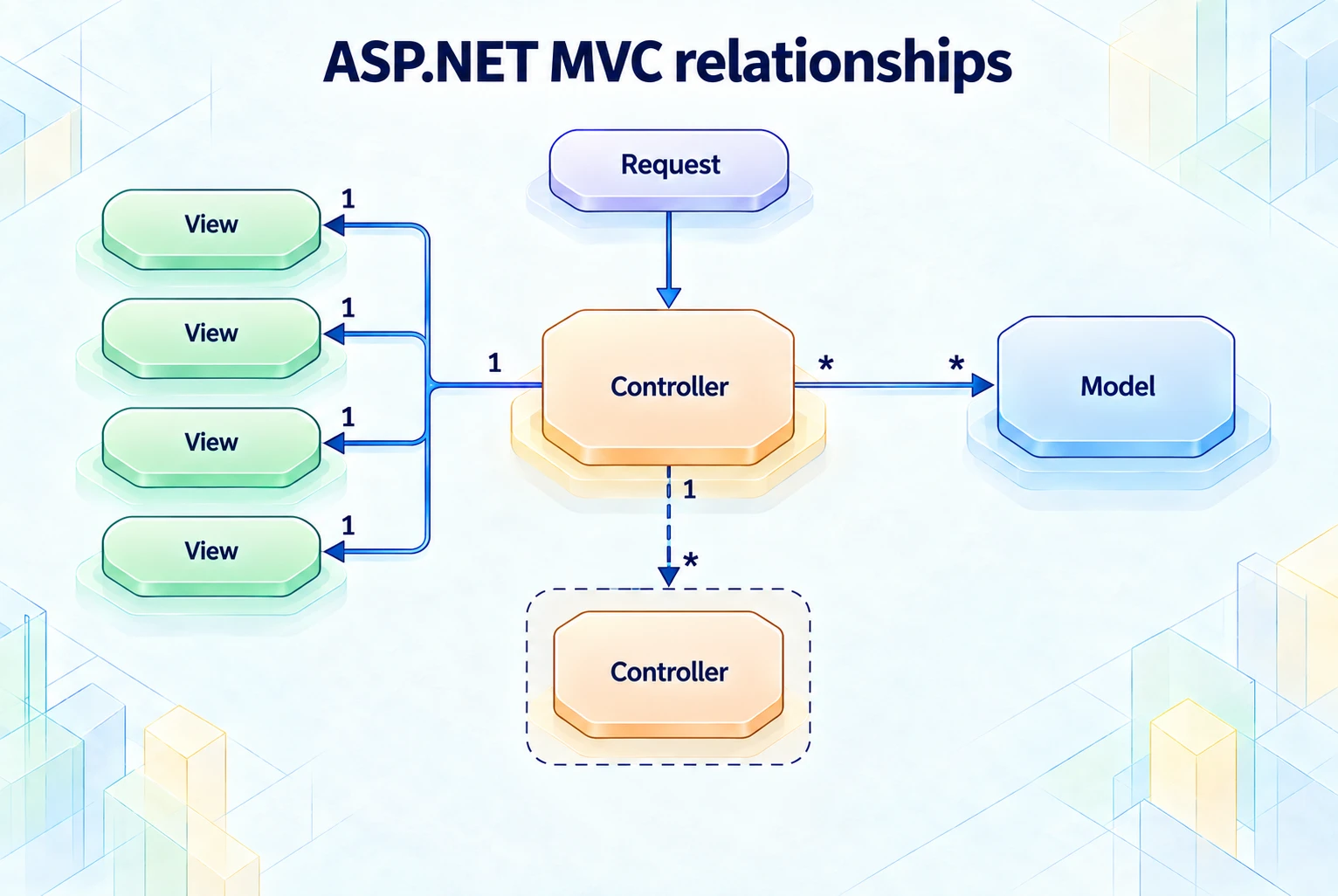
However, the primary driver for Quartz for ASP.NET was the way in which you build pages in ASP.NET MVC and the problems with that design. Figure 1 below, shows the relationship and flow of control in the ASP.NET MVC design, between a Controller and a View, Partial View and Master Page/Layout Page.


<a id="figure1"></a>


<figure data-recovered-figure="figure-01">
<a href="/images/writing/quartz-for-aspnet/figure-01.webp"><img src="/images/writing/quartz-for-aspnet/figure-01.webp" alt="A request reaches a Controller connected to four Views, a Model, and a subordinate Controller, retaining the original multiplicities." loading="lazy" /></a>
<figcaption data-reconstruction>Redrawn from the original relationship diagram; labels, connections, and multiplicities are retained.</figcaption>
</figure>


#### Figure 1: ASP.NET MVC - relationship between a Controller and "views"

You'll notice that the process of building a page is akin to a chain reaction. That wouldn't be so bad if it weren't for the fact that the controller is not really controlling anything besides starting off a specific chain reaction (everything to the left of the Controller on the right in [Figure1](#figure1)).

## How Quartz for ASP.NET Works

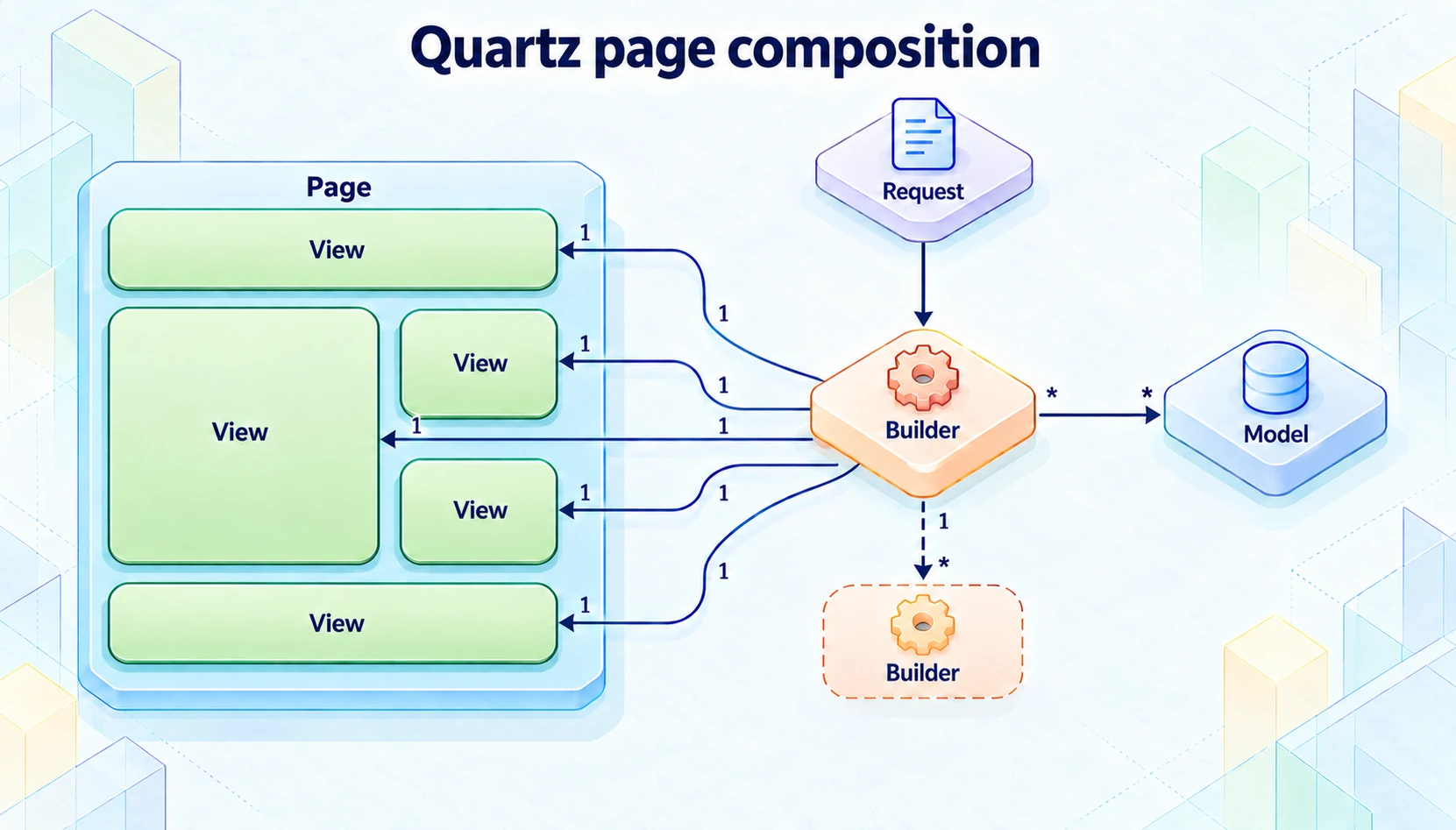
Figure 2 shows the relationship and flow of control between the <code>Builder</code> and the Views and Master Page Template. 
<a id="figure2"></a>


<figure data-recovered-figure="figure-02">
<a href="/images/writing/quartz-for-aspnet/figure-02.webp"><img src="/images/writing/quartz-for-aspnet/figure-02.webp" alt="A Builder receives the request and directly composes five Views within a Page, with links to a Model and a subordinate Builder." loading="lazy" /></a>
<figcaption data-reconstruction>Redrawn from the original composition diagram, retaining all five Views and the Builder's direct connections.</figcaption>
</figure>


#### Figure 2: Quartz for ASP.NET - relationship between a Builder and Views

In Quartz for ASP.NET you use composition to build your pages. That is, a page is a composition of multiple View objects. The <code>Builder</code> orchestrates the entire composition. The way it works is this:

1. The Builder picks a Master Template (an Html file). This template usually has spots that need to be filled in, as shown in [Figure 2 above](#figure2), the "Page"
2. It then picks the appropriate views for each of these spots (a base class (of the Builder) could enlist some views to do the "common" parts and the descendant Builder could choose to override these choices)
3. Since the Builder has access to instances of each of the views enlisted to render the page, it can talk directly to these views to hand them the data each of them will need to do their part.
4. Again, since the Builder has access to views as objects instances it can treat views polymorphic-ally if required or use inheritance or both
5. Once it has done the above, each of the views go off and do their part (generate html) and a page is produced.
6. Since views are regular .NET classes you have the full might of the .NET framework at your disposal. And since their only job is to produce html in conjunction with the Request Context (of the current request) and the data they’ve been handed by the Builder, it’s totally up to you, how you do that. The Quartz framework does provide some options out of the box, and they are:
   - Simply generate html using just code and data, writing directly to the output
   - Use html templates (with placeholder tags – parser included with the framework) to render html directly to the output. This method has the added advantage that you have no html in code and templates can be re-used across multiple views and/or a view can use multiple templates or decide to use a different template conditionally
   - Use any other mechanism to generate html, such as T4 Templates.

The code listing below is a sample of the code you'd write in a <code>Builder</code>'s <code>BuildPage()</code> method.

### Sample Code


```csharp
protected override void BuildPage(HttpContextBase httpContext, object model)
{
    var featuresAllPageViewModel = (FeaturesAllPageViewModel)model;

    TitleView.Title = "Quartz for ASP.NET - Features";
    AdBoxTopView.BoxTitle = "Highlights";
    AdBoxTopView.Model = featuresAllPageViewModel.AdBoxModel;

    RegisterView("Body", new FeaturesAllView(httpContext, this, featuresAllPageViewModel.Features));
  }
}
```


## Composing Pages with Quartz for ASP.NET

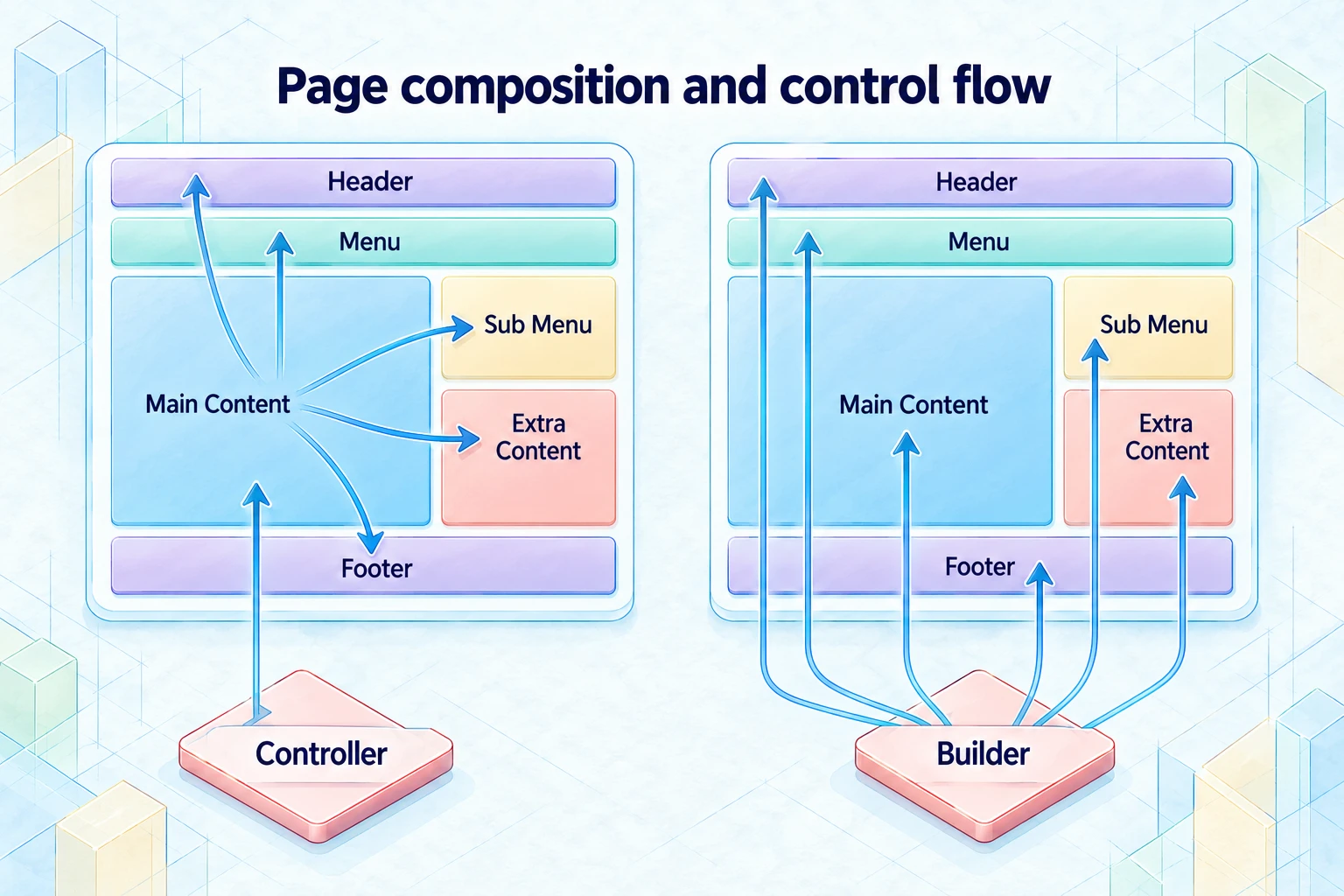
Traditionally, web application frameworks work in a inside-out fashion. That is, when you field a request for a page, you’re really starting with the inner most part of the page and working your way out (by calling <code>RenderAction</code> or <code>RenderPartial</code> in MVC parlance). In Quartz for ASP.NET you start with a template and compose your page using multiple views. It’s really a lot more intuitive to think and work this way, than inside-out.


<figure data-recovered-figure="figure-03">
<a href="/images/writing/quartz-for-aspnet/figure-03.webp"><img src="/images/writing/quartz-for-aspnet/figure-03.webp" alt="Controller-driven flow starts in Main Content and reaches the other regions; the Builder connects directly to all six page regions." loading="lazy" /></a>
<figcaption data-reconstruction>Redrawn from the original comparison: the left page expands from Main Content, while the Builder on the right addresses each region directly.</figcaption>
</figure>


### Figure 3: Quartz for ASP.NET - Composing Pages in an intuitive manner

## More Features of Quartz for ASP.NET

- Since all templates are html, your designer can build templates using the html design tool of her choice, and both you and the designer can live an uncluttered life (no more html+code or code+html)
- Views are completely unaware of the Builder that enlisted them or any other Builders for that matter. In Quartz for ASP.NET, Views are the "leaf nodes". There is only one loosely coupled linkage, that between the Builder and the views it enlists.
- All the code you write is strongly typed so you get all the benefits of strong typing and the IDE can help you navigate your classes and methods (F12).
- Blazingly FAST!

### Razor Views

In the Quartz framework, templates are really just html templates. This keeps your templates clean, reusable and designable by web designers. However, since the Razor syntax is so cool, there is an ***experimental*** RazorView that you can try out. At the moment the view template is compiled each time the view is rendered. I'm not sure this feature will go too far since it kind of goes against the grain. But it's there... 

<a id="videos"></a>


## Quartz for ASP.NET - Quick-Dive Video

In the video below I attempt to give you a really good overview of what the Quartz framework is and how you would use it. So please take a look at the video since not only will you get a really good sense of what Quartz for ASP.NET is but I'm sure a lot of your questions will be answered as well.
## Quartz for ASP.NET - Data Binding

This is a short video that shows you how data binding works. We use the <code>Repeater</code> in this demo as well so you'll also get to see how the <code>Repeater</code> can be used along with templates.


## Downloads

The downloadable .zip files contains the following files

1. The Complete source code (.Net 4.0 compatible only at the moment)
2. A Sample Project
3. A New Quartz Project Item - for VS 2010
4. A New Quartz Builder Item - for VS 2010
5. A New Quartz View Item - for VS 2010

[Quartz For ASP.NET Source](https://web.archive.org/web/20240809182901/http://www.matlus.com/content/uploads/Quartz/Matlus.Quartz.zip)
## Installing Project and Item Templates in VS.NET

If you've not installed project and item templates in Visual Studio before, please follow these steps:

Extract the files from the downloaded zip file to a temporary folder.

First we'll installed the **Project Item Template**.

1. Locate the file called – <code>Quartz Web Application.zip</code>
2. Navigate to the Visual Studio Project Templates (C#) folder. On my machine this folder is located at:
3. 

```text
C:\Program Files (x86)\Microsoft Visual Studio 10.0\Common7\IDE\ProjectTemplates\CSharp\
```


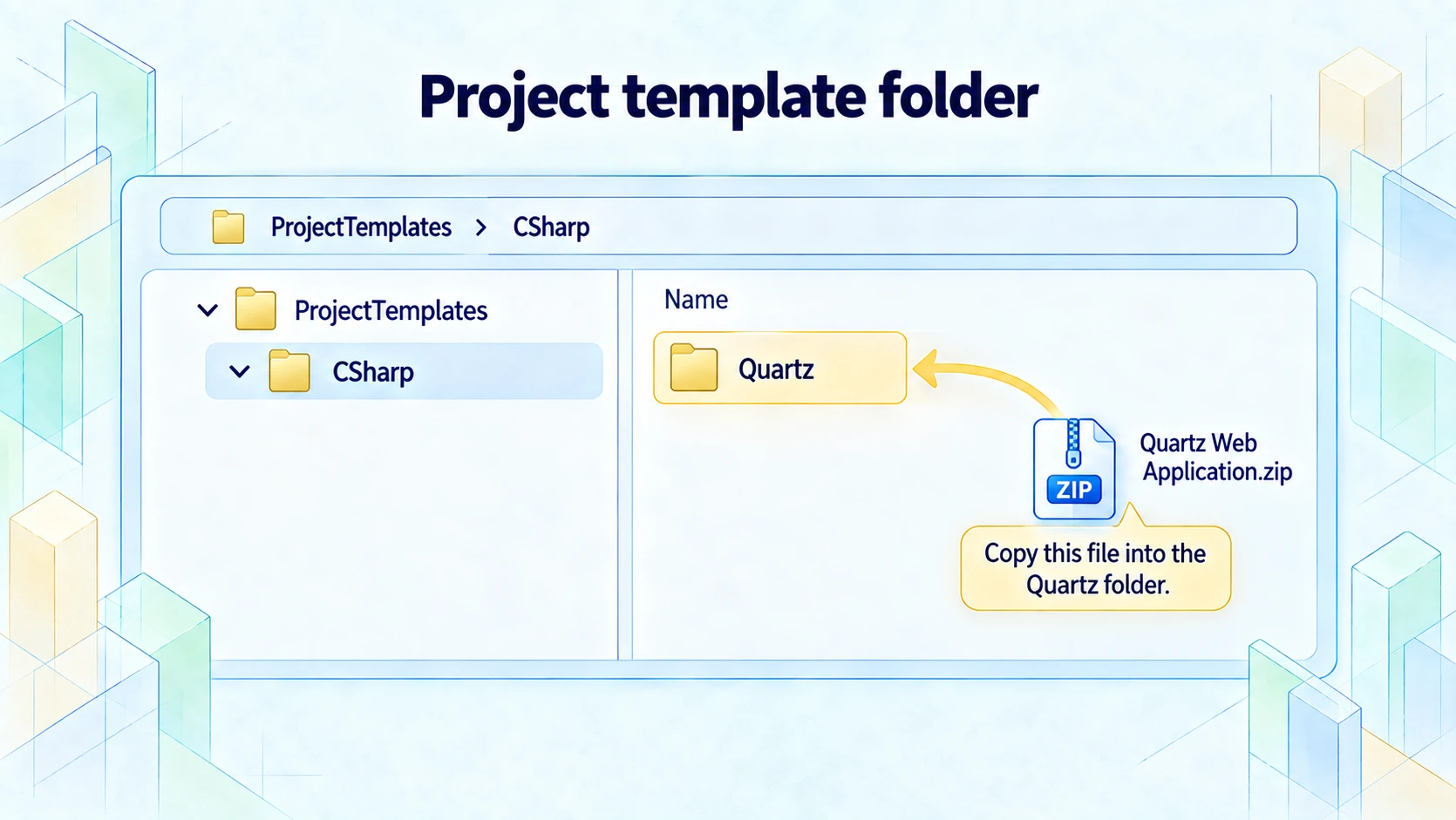
4. Create a folder called <code>Quartz</code> under the <code>CSharp</code> folder as shown in [Figure 4](#figure4) below
5. Copy the <code>Quartz Web Application.zip</code> into this folder
6. Follow the steps listed in the [Rebuilding the Visual Studio Cache](#rebuildingvscache) section below in order to rebuild the VS.NET cache.
7. Start Visual Studio (rebuild the cache first!) and create a new project.
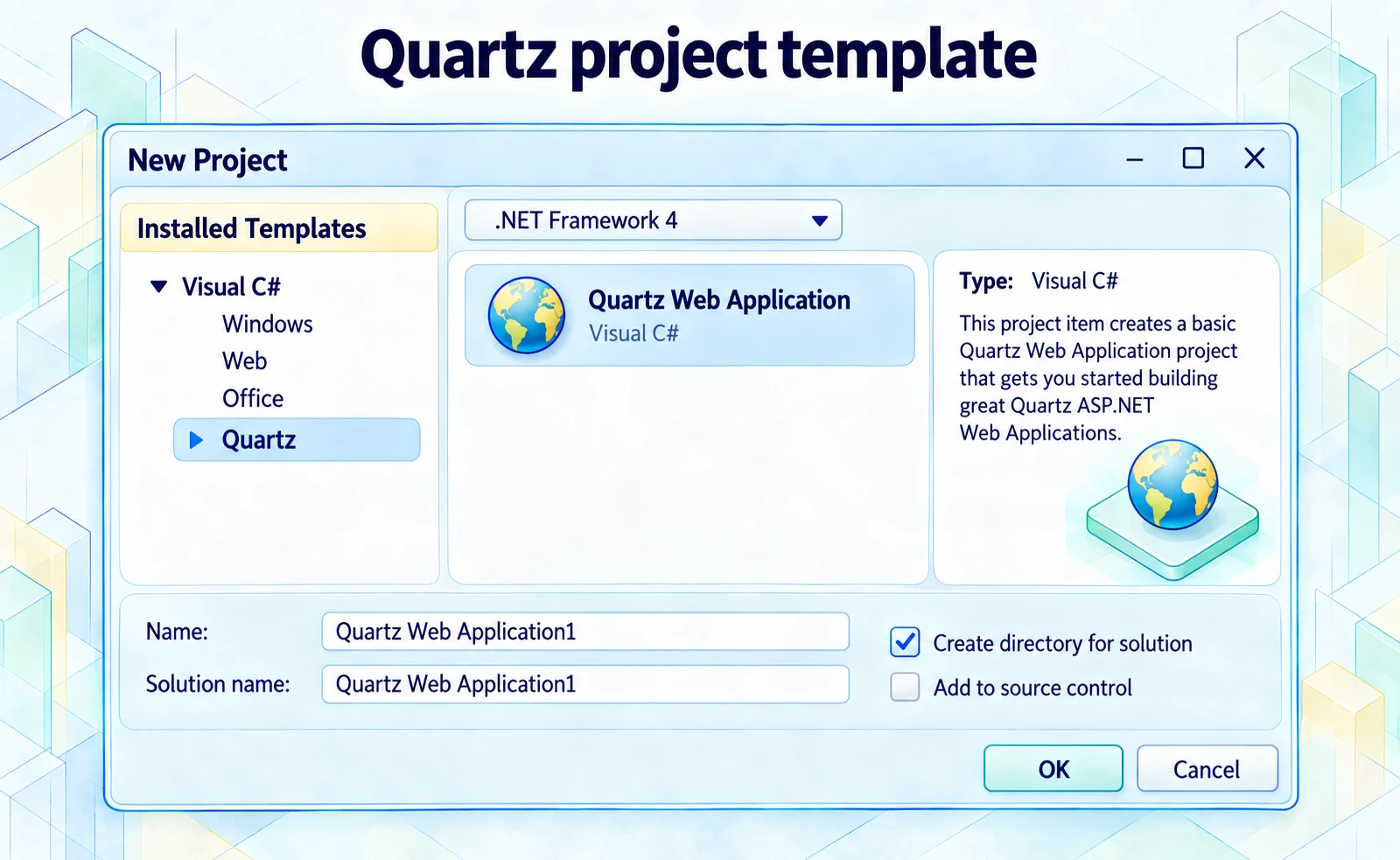
8. You'll notice a <code>Quartz</code> folder in <code>Installed Templates</code> ree view on the left (as seen in [Figure 5](#figure5) below) and when you select it, you'll see the Quartz Web Application project item template and shown in Figure 5 below

<a id="figure4"></a>


<figure data-recovered-figure="figure-04">
<a href="/images/writing/quartz-for-aspnet/figure-04.webp"><img src="/images/writing/quartz-for-aspnet/figure-04.webp" alt="Create the Quartz folder under ProjectTemplates/CSharp and place Quartz Web Application.zip there." loading="lazy" /></a>
<figcaption data-reconstruction>Illustrated reconstruction. Create the Quartz folder under ProjectTemplates/CSharp and place Quartz Web Application.zip there.</figcaption>
</figure>


### Figure 4: Creating the Quartz Project Template folder


<a id="figure5"></a>


<figure data-recovered-figure="figure-05">
<a href="/images/writing/quartz-for-aspnet/figure-05.webp"><img src="/images/writing/quartz-for-aspnet/figure-05.webp" alt="The Quartz Web Application template appears under Visual C# &gt; Quartz in the New Project dialog." loading="lazy" /></a>
<figcaption data-reconstruction>Illustrated reconstruction. The Quartz Web Application template appears under Visual C# &gt; Quartz in the New Project dialog.</figcaption>
</figure>


### Figure 5: Quartz Web Application Project Item

The steps involved in installing the Item Templates in Visual Studio are similar to the steps we followed earlier for installing the Project Item Template. This time you need to create a folder under a different hive.

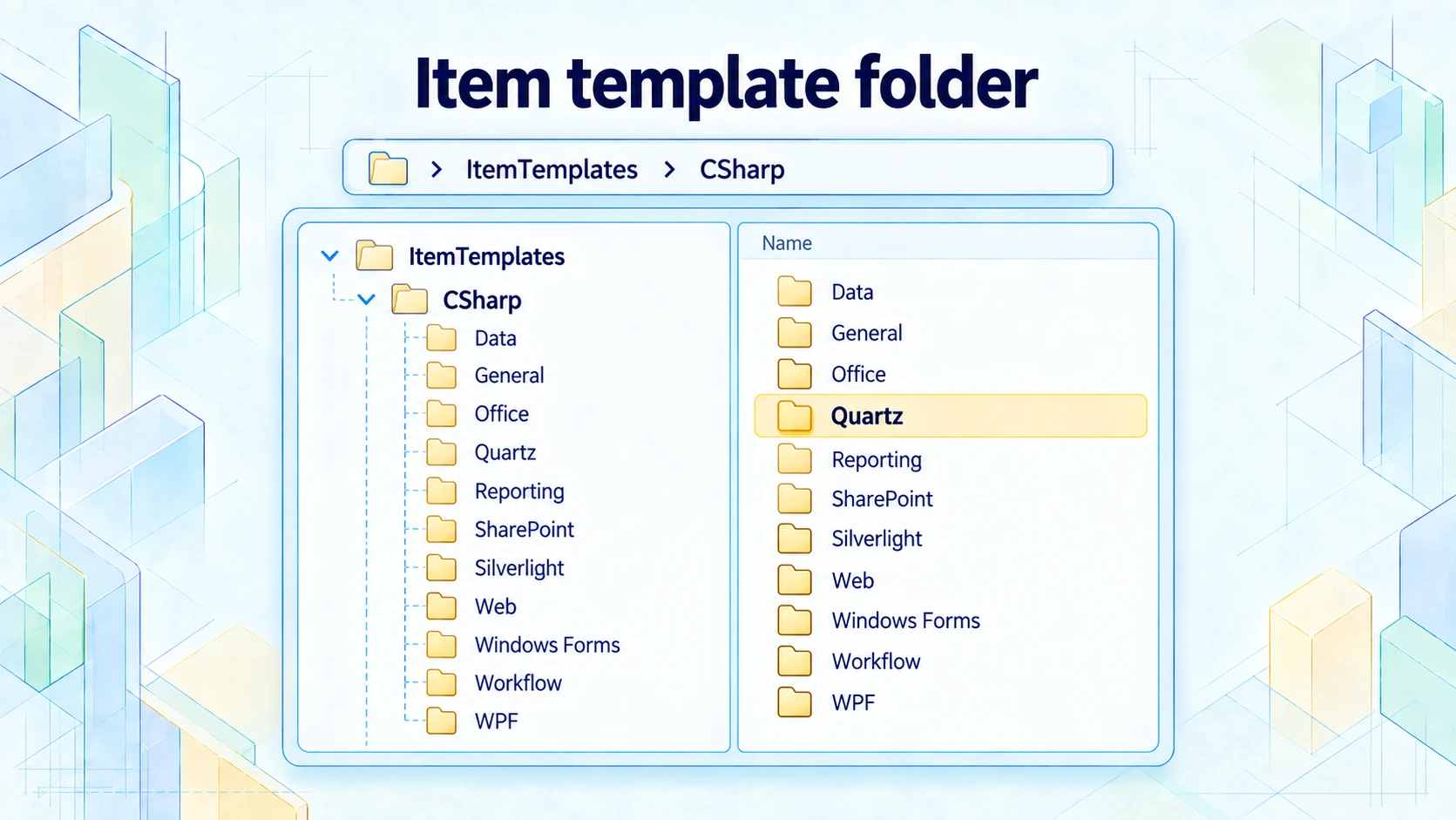
1. You'll need to create a folder under the <code>ItemTemplates&#92;CSharp</code> folder, which on my machine is:
2. 

```text
C:\Program Files (x86)\Microsoft Visual Studio 10.0\Common7\IDE\ItemTemplates\CSharp
```


3. Like before, create a folder called <code>Quartz</code> under this folder as shown in [Figure 6](#figure6) below.
4. Copy the <code>QuartzBuilder.zip</code> and <code>QuartzView.zip</code> files into this new folder
5. Rebuild the Visual Studio cache again using the steps listed in the [Rebuilding the Visual Studio Cache](#rebuildingvscache) section below.
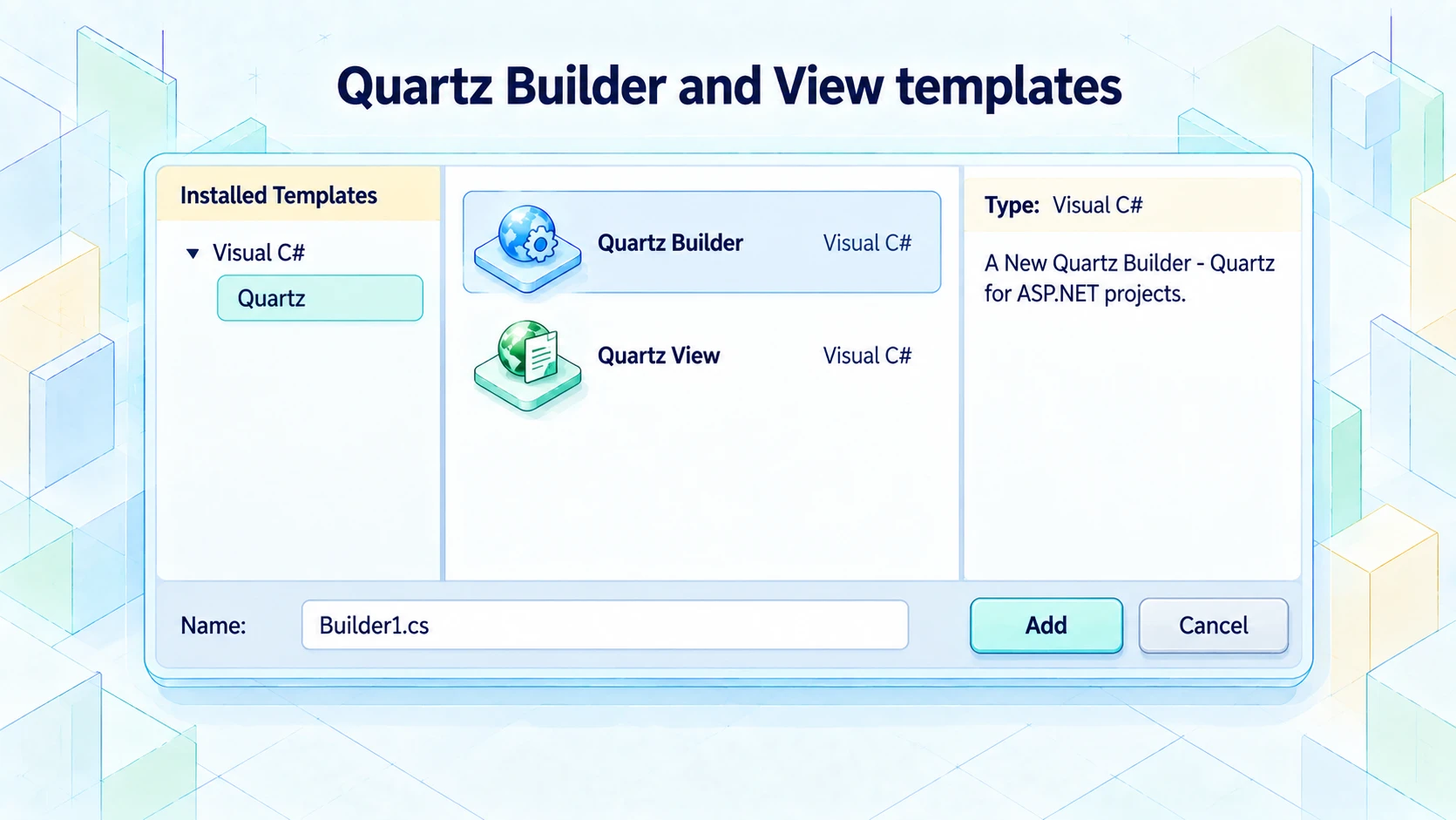
6. After you've done that, you'll see item templates for a Quartz Builder and Quartz View when you add an item to your Quartz Web Application project, as shown in [Figure 7](#figure7) below

<a id="figure6"></a>


<figure data-recovered-figure="figure-06">
<a href="/images/writing/quartz-for-aspnet/figure-06.webp"><img src="/images/writing/quartz-for-aspnet/figure-06.webp" alt="Create the Quartz folder under ItemTemplates/CSharp for the item templates." loading="lazy" /></a>
<figcaption data-reconstruction>Illustrated reconstruction. Create the Quartz folder under ItemTemplates/CSharp for the item templates.</figcaption>
</figure>


### Figure 6: Showing the Quartz folder under the ItemTemplates\CSharp folder


<a id="figure7"></a>


<figure data-recovered-figure="figure-07">
<a href="/images/writing/quartz-for-aspnet/figure-07.webp"><img src="/images/writing/quartz-for-aspnet/figure-07.webp" alt="The Quartz category offers Builder and View items; the selected Builder is named Builder1.cs." loading="lazy" /></a>
<figcaption data-reconstruction>Illustrated reconstruction. The Quartz category offers Builder and View items; the selected Builder is named Builder1.cs.</figcaption>
</figure>


### Figure 7: Showing the Quartz Builder and View items in the Add new Item dialog


<a id="rebuildingvscache"></a>


## Rebuilding the Visual Studio Cache

Once installed the item templates into VS.NET, you'll need to get Visual Studio to rebuild its cache. You do that by doing the following:

1. Close all instances of Visual Studio
2. Open a <code>Visual Studio Command Prompt</code> (i.e. Start | All Programs | Microsoft Visual Studio 2010 | Visual Studio Tools | Visual Studio Command Prompt)
3. Execute the following command: <code>devenv /installvstemplates</code>